> ## Documentation Index
> Fetch the complete documentation index at: https://docs.play.ai/llms.txt
> Use this file to discover all available pages before exploring further.
# Cancel Billing Plan
> Steps on how to end your Play Premium Subscription
### Detailed Steps
* Go to [Your PlayAI Billing Account](https://play.ai/billing/plans)
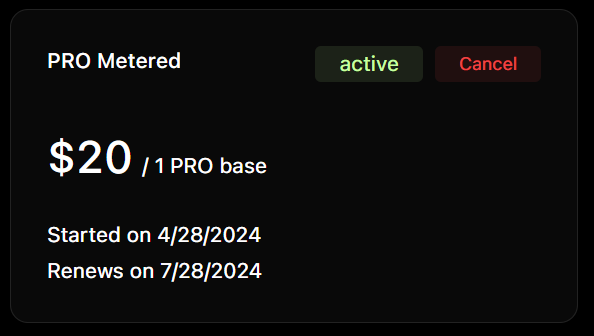
* You shall see your current subscription like this:
You won't be able to cancel your subscription if you have unpaid invoices for a month where you have used the servies
or you have not paid your dues.
* Go ahead and hit the **Cancel button** to cancel your subscription.
If you cancel a plan after paying for a subscription, your plan is going to end on the end date for that plan and
won't renew.