> ## Documentation Index
> Fetch the complete documentation index at: https://docs.play.ai/llms.txt
> Use this file to discover all available pages before exploring further.
# Voice Cloning
> Learn how to create custom voices from your own audio samples
[Try Voice Cloning now](https://play.ai/voices/voice-clones?openCloneVoiceModal=true)
Know more about Voice Cloning here: [Play AI Voice Cloning](https://www.youtube.com/watch?v=nzyotTIk060)
## Steps to create your voice clone:
##
### 1. Access the Voice Cloning Feature
Navigate to the [Play AI App](https://play.ai/home) and log in to your account. Once logged in, locate and click on the **Create Voice Clone** option in the left navigation bar.
### 2. Choose Your Cloning Method
When the modal appears, you'll see two options:
Minimum 30 sec of audio is required for Instant Cloning
**For Quick cloning of your voice**
- Requires only 30 seconds of audio
- Results available instantly
- Record your voice on the fly
- Upload an existing audio file
**For professional results**
- Requires 20+ minutes of audio
- Captures nuanced speech patterns
- Preserves authentic accents
- Superior voice quality
- Takes longer time to train
- Recommended for commercial use
### 3. Provide Your Audio Sample
#### For Instant Cloning:
The **Voice Gender** setting for Instant Clones currently does not have any effect!
* **Recording Option**: Click the record button and speak naturally for at least 30 seconds
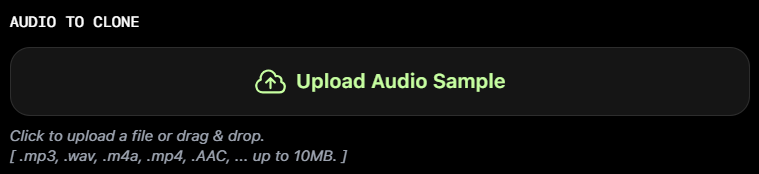
* **Upload Option**: Upload a pre-recorded audio file (minimum 30 seconds)
#### For High Fidelity Cloning:
* Upload one or more audio files totaling **up-to 30 minutes** (do not exceed)
* Ensure consistent audio quality throughout
* Use clear recordings without background noise
**Best Practices for Audio Samples:**
Use a high-quality microphone
Higher audio quality shall yield better results
Record in a quiet environment
Speak naturally and be clear
Include different speaking styles (questions, statements, emotions)
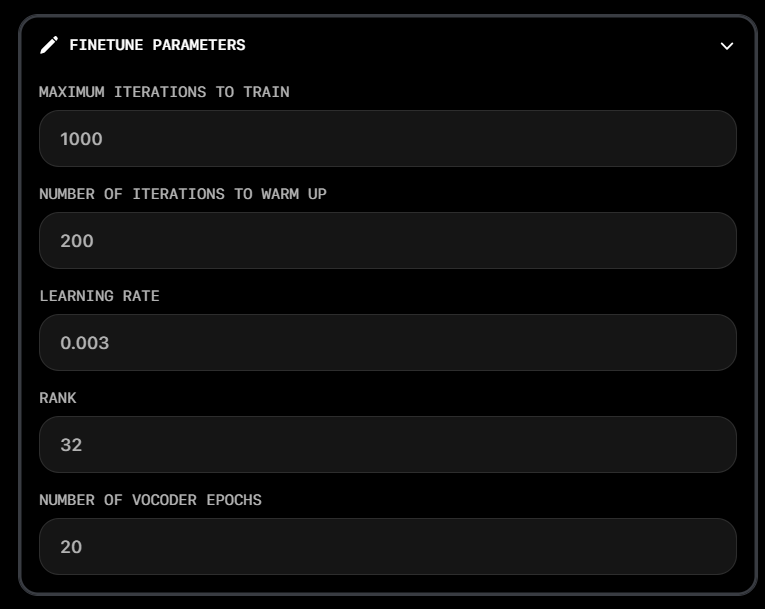
It is recommended that you **do not change these.** Changing them might cause instability in output.
Available parameters for High Fidelity Voice Cloning:
Maximum Iteration to Train: Controls the total duration of model training. Higher values mean
longer training time but potentially better results.
Number of iterations to warm up: Initial training phase where the model gradually adjusts its
parameters before full training begins. Helps establish a stable starting point.
Learning Rate: Determines how much the model's weights are adjusted in each training iteration.
Higher values mean faster learning but risk instability.
Rank: Controls how much the model can be modified by the input voice. Higher values allow more voice
influence but should be used cautiously to avoid overfitting.
Number of Vocoder Epochs: Specifies how many times the vocoder (audio synthesis component) goes
through the training data. More epochs can improve audio quality but increase training time.
### 4. Process Your Voice Clone
After submitting your audio:
* **Instant clones** typically process within \~1 minute
* **High Fidelity clones** may take longer depending on audio length (\~35 mins)
* You'll receive a notification when your clone is ready
### 5. Access Your Cloned Voices
Once processing is complete, navigate to [Your Cloned Voices](https://play.ai/voices/voice-clones) to:
* Preview your cloned voice
* Test with different text inputs
* Manage voice settings
* Use in your projects
{' '}
Learn how to get the voice ID here: [Get ID for a voice](/documentation/text-to-speech/tts-voices#voice-library)
 ### 2. Choose Your Cloning Method
When the modal appears, you'll see two options:
### 2. Choose Your Cloning Method
When the modal appears, you'll see two options:
 * **Upload Option**: Upload a pre-recorded audio file (minimum 30 seconds)
 #### For High Fidelity Cloning:
* Upload one or more audio files totaling **up-to 30 minutes** (do not exceed)
* Ensure consistent audio quality throughout
* Use clear recordings without background noise
#### For High Fidelity Cloning:
* Upload one or more audio files totaling **up-to 30 minutes** (do not exceed)
* Ensure consistent audio quality throughout
* Use clear recordings without background noise