> ## Documentation Index
> Fetch the complete documentation index at: https://docs.play.ai/llms.txt
> Use this file to discover all available pages before exploring further.
# Knowledge Base
> Learn how to give agents access to your documents and websites
## Upload a document
You can upload a document to your agent's knowledge base by clicking the "Upload Knowledge Files" button in the create/edit agent flow.
Documents are automatically chunked and indexed as necessary.
## Crawl a website
PlayAI Agents can also crawl a website and answer questions about the content and navigate the user to the relevant pages.
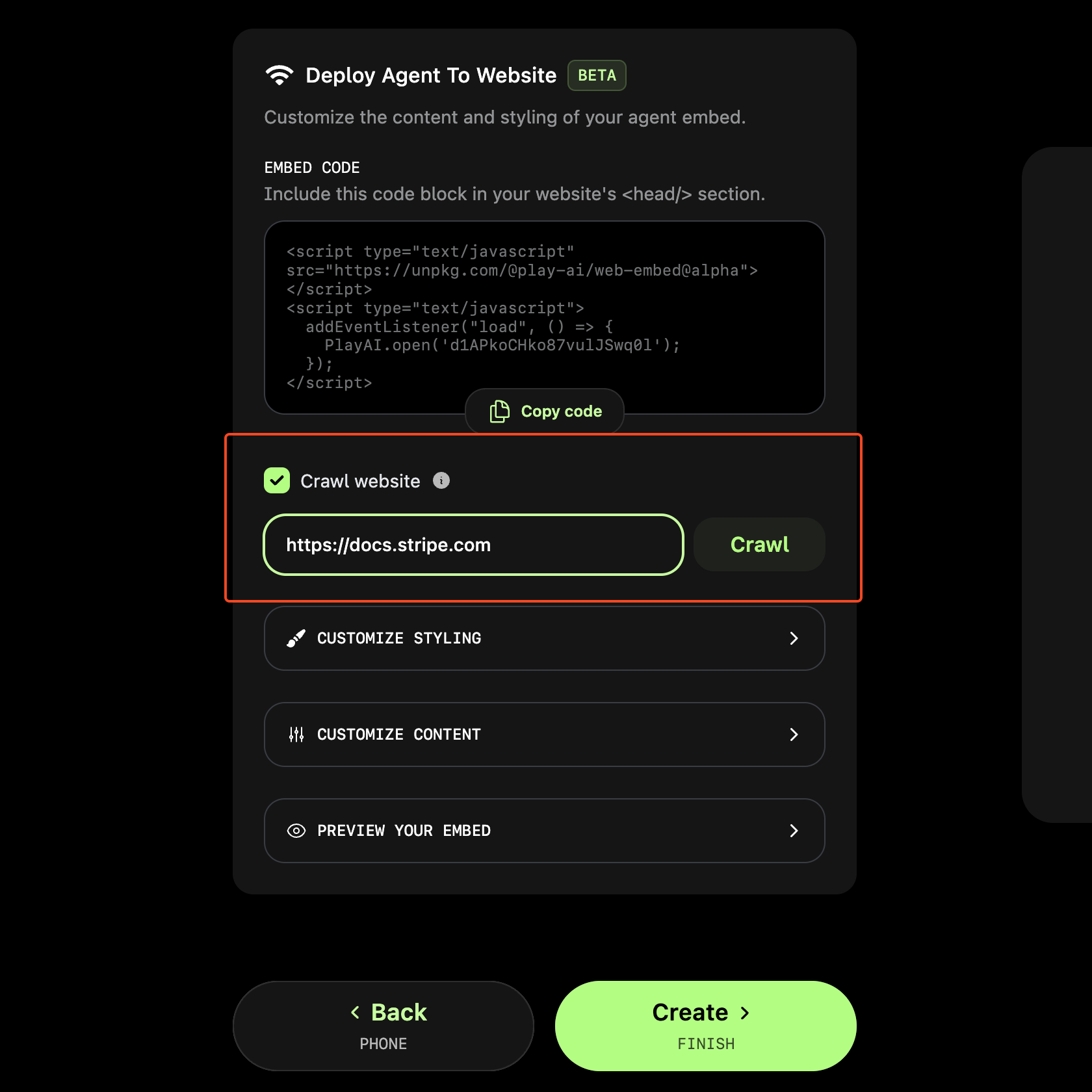
On the last page of the create/edit agent flow, check the "Crawl website" checkbox and enter the URL of the website you want to crawl.
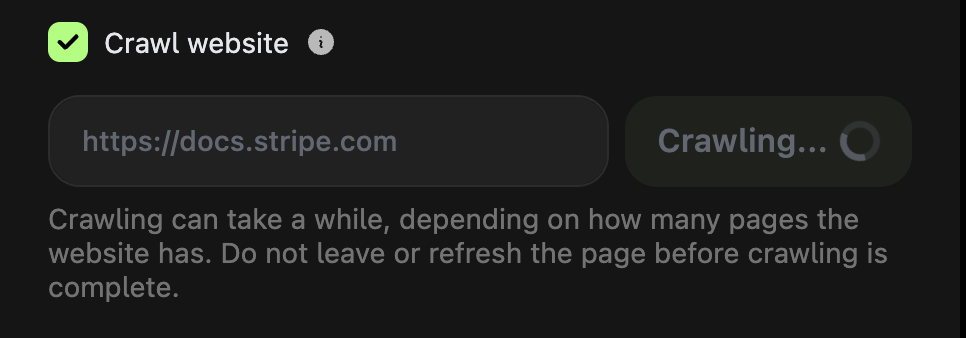
 Stay on the page until the crawling process is complete. This can take a while if the website has many pages.
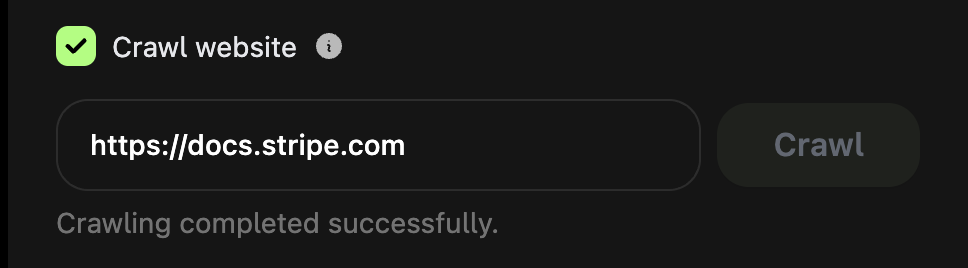
 Your embed should now be able to answer questions about the crawled website and navigate the user to relevant pages on the site.
 ## Delete a crawled website
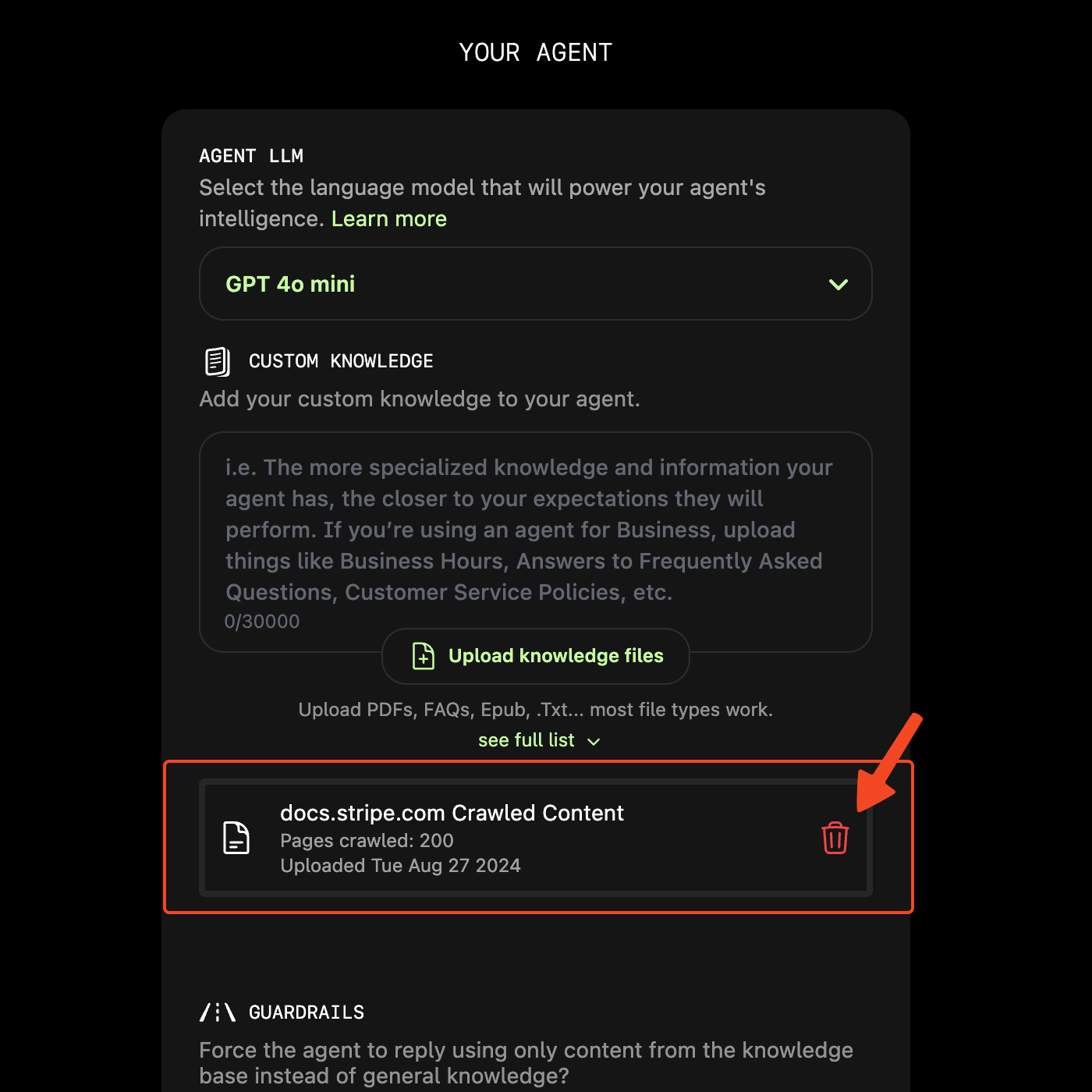
Go into the "Knowledge" tab of the create/edit agent flow and click the trash icon next to the website you want to delete under the "Custom Knowledge" section.
## Delete a crawled website
Go into the "Knowledge" tab of the create/edit agent flow and click the trash icon next to the website you want to delete under the "Custom Knowledge" section.